
SOC 1 and SOC 2 Compliance: What's the Difference?
A health system's security team asks for your SOC 1 and SOC 2 compliance reports before they'll sign off on your integration, and you're not sure which one they actually need. That confusion costs deals. Digital health vendors lose weeks going back and forth with hospital IT and compliance departments because nobody on the sales side can explain the difference in plain terms.
Here's the short answer: SOC 1 covers financial reporting controls, while SOC 2 covers security, availability, and confidentiality controls for the systems handling your data. If you're building an app that touches patient health information inside EPIC, SOC 2 is almost always the report health systems want to see, not SOC 1. Mixing these up in a proposal signals to a hospital's security reviewer that you don't understand their requirements.
This article breaks down what each report actually audits, how the Type I versus Type II distinction changes what you're proving, and which certification you need depending on your product. We'll also cover how SOC 2 fits alongside HIPAA when you're integrating with EPIC, so you walk into vendor reviews with answers instead of guesses.
Why the SOC 1 vs. SOC 2 distinction matters
A misfiled report stalls the whole vendor review

Sending a SOC 1 report to a hospital security team that asked for SOC 2 doesn't just create a delay, it signals you don't understand what they're protecting. Health system vendor risk teams review dozens of applications a month, and most of them have a checklist that specifically names SOC 2 Type II as a baseline requirement before they'll grant API access to EPIC. When your team responds with a SOC 1 report built for financial auditors, the reviewer has to stop, explain the mismatch, and wait for you to produce the right documentation. That round trip can add two to three weeks to a deal that was otherwise ready to close.
Handing a hospital the wrong SOC report doesn't just slow the deal, it tells them you don't know their world.
The two reports protect completely different things
Confusing SOC 1 and 2 compliance often comes down to the names alone, both sound like generic "security audits," but they cover entirely different risks. SOC 1 reports exist to reassure a company's financial auditors that a vendor's controls won't introduce errors into financial statements, think payroll processors, billing platforms, or anyone touching a client's general ledger. SOC 2 reports exist to reassure a customer that the vendor won't leak, lose, or mishandle their data, built around the AICPA's Trust Services Criteria of security, availability, processing integrity, confidentiality, and privacy. A remote patient monitoring startup has no financial reporting relationship with the hospitals it sells to, so SOC 1 tells them nothing useful. What they need to know is whether your servers are hardened, your access controls are logged, and your incident response plan actually works.
Health systems treat SOC 2 as a floor, not a bonus
Once you understand what is soc1 and soc 2 compliance actually verifies, it's obvious why health systems draw a hard line. A hospital's compliance office answers to its own board and to regulators if a vendor breach exposes patient data, and SOC 2 gives them third-party-verified evidence that you've built real controls, not just a privacy policy page. Most EPIC-facing procurement teams won't schedule a technical review until SOC 2 documentation is on file, because legal and security sign-off depends on it. A hospital may accept a SOC 1 report as a secondary artifact if you also process billing or claims data on its behalf, but it never substitutes for SOC 2 when patient health information is in play.
Getting it wrong costs more than a lost deal
Beyond the sales friction, presenting the wrong compliance report undermines your credibility with procurement, in a market where trust is most of the sales pitch. A digital health vendor that mislabels its compliance posture in an RFP response invites deeper scrutiny on everything else in the submission, including uptime claims, support response times, and data handling practices that might otherwise have gone unquestioned. Procurement teams talk to each other across health systems, and a reputation for fumbling basic compliance questions follows you into the next evaluation, even when your actual security controls are solid. Getting the distinction right the first time protects both your timeline and your standing across every health system you approach afterward.
Where the confusion usually comes from
Most of the mix-ups we see trace back to founders who inherited compliance decisions from a prior fundraising round or a generic security consultant, rather than from someone who's actually sold into a hospital before. A short list of the usual triggers:
- Marketing copy that says "SOC compliant" without specifying which report, leaving sales reps to guess when a prospect asks
- A SOC 1 report obtained for investor due diligence that gets reused in health system sales conversations because nobody flagged the mismatch
- Assuming HIPAA compliance covers the same ground as SOC 2, when a Business Associate Agreement and a SOC 2 audit answer different questions
- Treating soc 1 and soc 2 certification as interchangeable checkboxes on a security questionnaire instead of reading what each one actually attests to
Fixing this before your first EPIC-facing sales call saves you from walking back a claim in front of a hospital's security team. The next section breaks down exactly how to figure out which report, or both, your product actually needs.
How to determine whether you need SOC 1, SOC 2, or both
The fastest way to figure out which SOC report you need is to look at what your product actually touches, not what a template security questionnaire assumes. If your application processes, stores, or transmits patient data, or if it connects to EPIC in any way, you're in SOC 2 territory. If your platform affects a customer's financial statements, like a payroll system, a billing engine, or anything that feeds numbers into a client's books, you're in SOC 1 territory. Most digital health vendors land squarely in the SOC 2 camp, and a smaller subset, mostly revenue cycle and billing platforms, need both, so it's worth checking whether SOC 2 applies to your company at all.

Start with what data you handle
Ask yourself what happens to the data your application touches once it leaves your servers. A remote patient monitoring platform pulling vitals through EPIC's FHIR APIs has no bearing on a hospital's financial statements, so SOC 1 is irrelevant to that relationship. A revenue cycle management tool that calculates claims amounts or adjusts a hospital's accounts receivable balance is a different story, because errors in your processing could misstate the hospital's financials, which is exactly what SOC 1 exists to address. Run through this quick checklist before you commit to an audit type:
- Does your app touch protected health information (PHI) inside or adjacent to EPIC? SOC 2 applies.
- Does your app calculate, adjust, or report figures that flow into a client's financial statements? SOC 1 applies.
- Does your app do both, such as a billing platform that also stores clinical data for claims support? You likely need both reports.
- Are you a pure clinical workflow tool with no financial reporting function? SOC 2 alone is almost always sufficient.
If your app never touches a client's general ledger, SOC 1 isn't your problem, SOC 2 is.
Look at who's asking, and why
The requester usually tells you exactly what they need, if you read the request carefully instead of defaulting to whatever report you already have on hand. A hospital's IT security or vendor risk team asking about data protection, uptime guarantees, or breach response wants SOC 2. A hospital's finance department or external auditor asking about controls over a service that affects their books, like a third-party billing processor, wants SOC 1. When a health system's procurement portal lists compliance requirements for EPIC-facing vendors, it almost never mentions SOC 1 unless your product explicitly touches billing or claims. If you're unsure which team is asking, ask them directly what decision the report will inform. That single question saves you from commissioning an expensive audit you didn't need.
When you genuinely need both
A handful of vendor categories can't avoid both reports, and it's worth naming them so you don't guess wrong. Companies offering integrated billing and clinical documentation tools, prior authorization platforms that also process payment adjustments, or analytics vendors that feed both clinical dashboards and revenue reporting typically need SOC 1 for the financial side and SOC 2 for everything else. If that's your situation, plan for two separate audit engagements, since SOC 1 and 2 compliance aren't bundled into a single report even when the same auditor handles both. Budget for the added cost and timeline early, because trying to retrofit a SOC 1 engagement after your SOC 2 audit is already underway usually means re-scoping both.
Don't over-scope out of caution
Some founders pursue both reports
SOC 1 vs. SOC 2: comparing scope, criteria, and audience
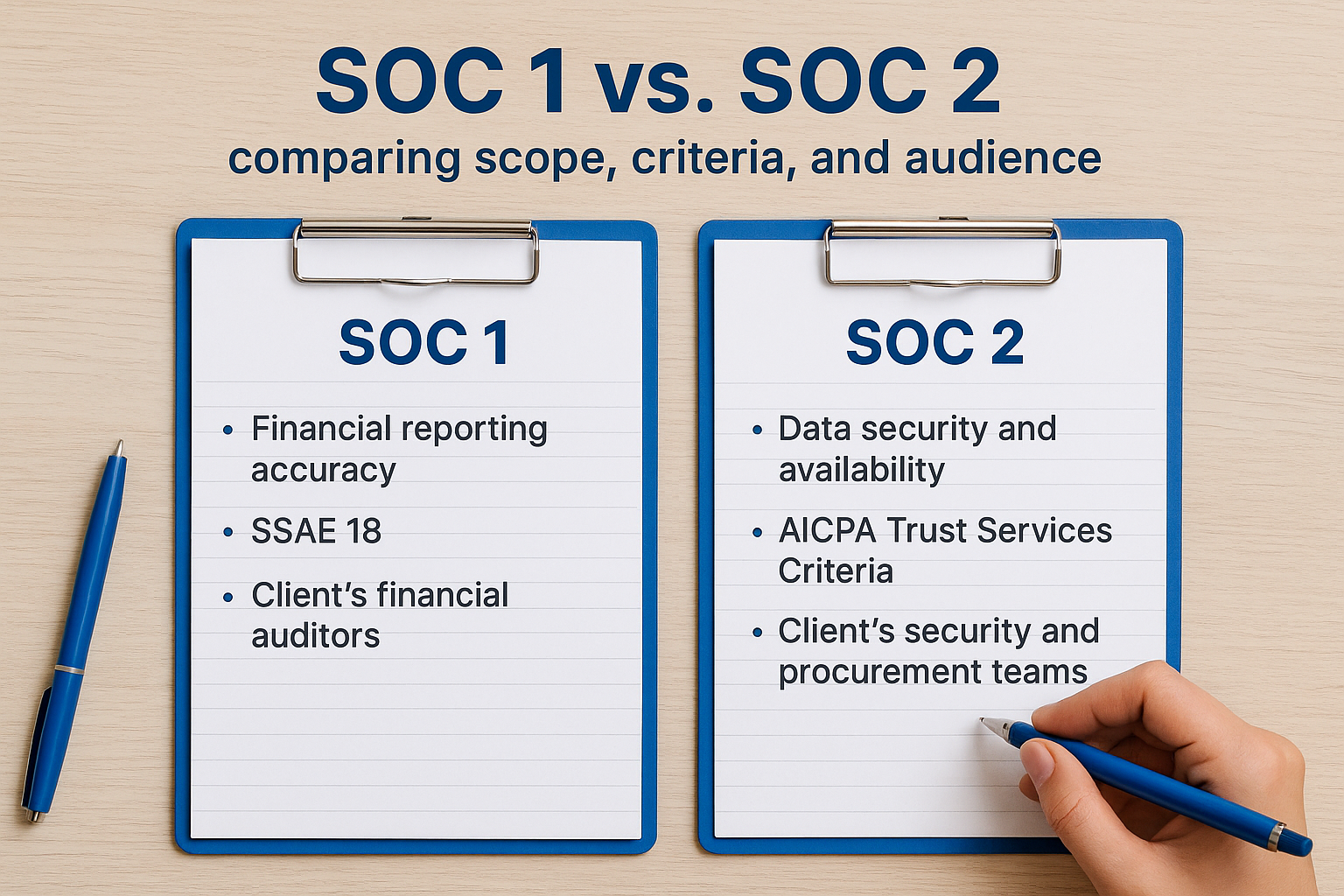
Laid side by side, the differences between these two reports become obvious fast, even though the acronyms look almost identical on a compliance checklist. SOC 1 audits examine controls that affect a client's financial statements, things like transaction processing accuracy and access to systems that touch billing data. SOC 2 audits examine controls tied to the AICPA's Trust Services Criteria, covering security, availability, processing integrity, confidentiality, and privacy. Once you see them mapped against each other, deciding which one a health system actually wants stops being a guessing game.
What each report actually measures
Every SOC 1 report is built around a single question: could a weakness in this vendor's controls cause a client's financial statements to be wrong? Auditors test things like whether payment calculations run correctly, whether access to financial data is restricted to the right people, and whether changes to billing logic go through proper approval. SOC 2 auditors ask a different question entirely: could a weakness in this vendor's controls expose, corrupt, or lose a client's data? That means testing encryption practices, incident response plans, employee access reviews, and system uptime against the criteria the vendor selected for its report. A remote patient monitoring company will almost never need financial-controls testing, but it absolutely needs its data-handling controls verified.
SOC 1 asks if your numbers can be trusted. SOC 2 asks if your data can be trusted.
Who actually reads these reports
The audience for each report tells you almost everything about which one applies to your business. SOC 1 reports go to a client's financial auditors, who use them to justify skipping redundant testing of a vendor's controls during their own annual audit. SOC 2 reports go to security and procurement teams, who use them to decide whether a vendor is safe to connect to sensitive systems like EPIC. Hospitals asking about SOC 1 vs SOC 2 compliance almost always mean the latter, since their concern is patient data exposure, not financial misstatement.
| Factor | SOC 1 | SOC 2 |
|---|---|---|
| Core question | Do controls affect financial reporting accuracy? | Do controls protect data security and availability? |
| Standard used | SSAE 18 | AICPA Trust Services Criteria |
| Typical audience | Client's financial auditors | Client's security and procurement teams |
| Common requesters | Payroll, billing, claims processors | SaaS vendors, EHR-integrated apps, cloud platforms |
| Relevant to EPIC integration? | Rarely | Almost always |
Why the criteria selection matters
Building a SOC 2 report isn't a single fixed checklist, since companies choose which of the five Trust Services Criteria categories to include beyond the mandatory security category. Vendors handling protected health information usually add confidentiality and availability at minimum, and some add privacy if they process patient data directly rather than through a covered entity's system. Choosing too narrow a scope leaves gaps a hospital's security reviewer will flag immediately, while choosing every criterion when it doesn't apply adds audit cost without adding trust. Talk through the criteria selection with your auditor before the engagement starts, because changing scope midway through an audit period usually means restarting the clock on evidence collection.
Type 1 vs. Type 2 reports: what the difference means
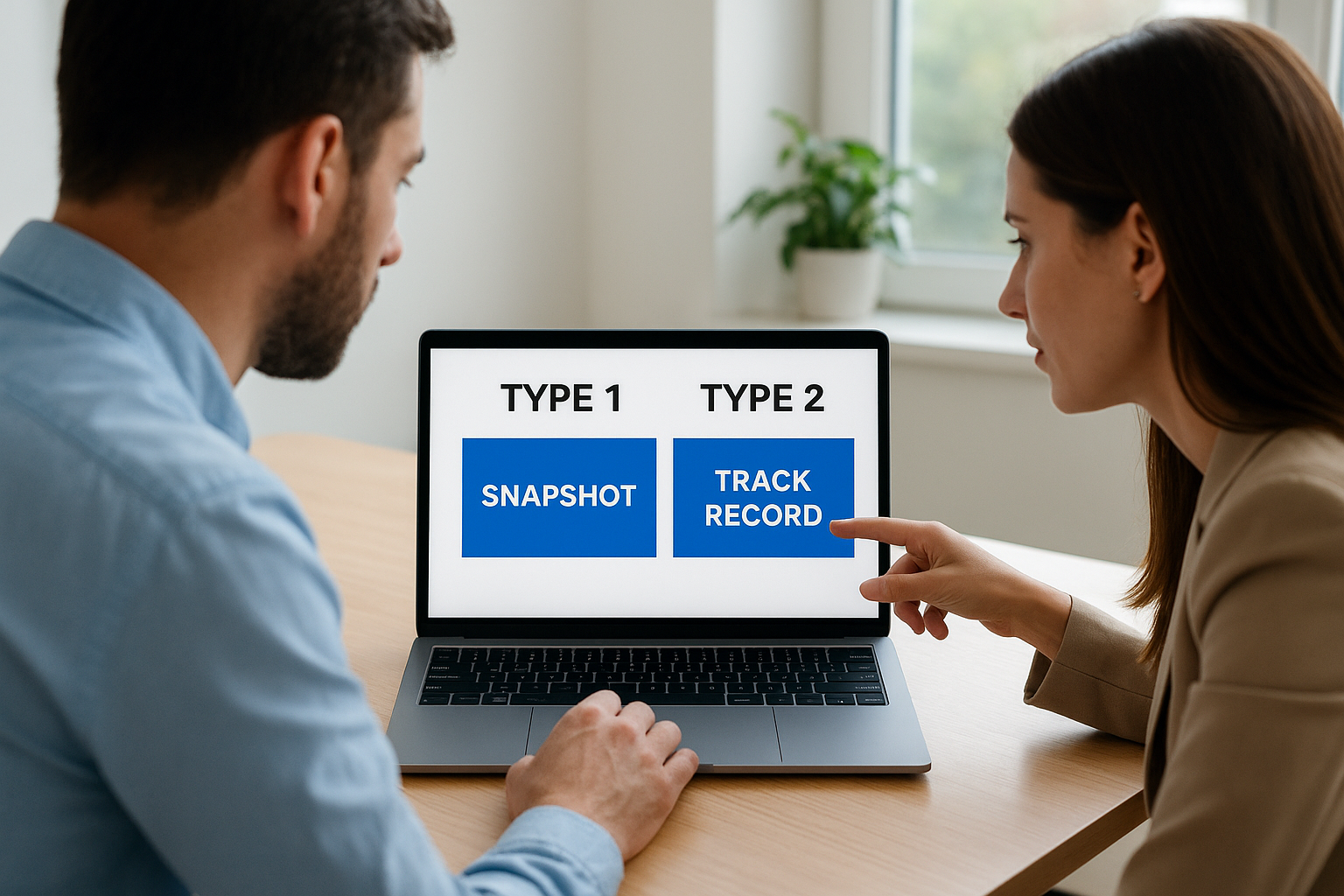
Every SOC 1 or SOC 2 report comes in one of two flavors, and the difference has nothing to do with which trust criteria you chose. A Type 1 report confirms your controls were designed properly on a single date, like a photograph of your compliance posture that day. A Type 2 report confirms those same controls actually operated effectively over a stretch of time, usually six to twelve months. Health systems care about this split because a control that looks solid on paper can still fail once real traffic, real employees, and real incidents hit it.
A snapshot versus a track record
Picture two vendors submitting reports for the same product. Vendor A hands over a Type 1 report showing that its access controls, encryption, and incident response plan were correctly designed as of last Tuesday. Vendor B hands over a Type 2 report showing those same controls held up across nine months of actual operation, including a documented response to a failed login attempt spike. Both reports describe compliant systems, but only one of them proves the controls survive contact with reality. That gap is exactly why a reviewer weighs a Type 2 report more heavily, even when the underlying control descriptions look nearly identical.
Why hospitals almost always ask for Type 2
Getting a design right once is a much lower bar than sustaining it. A hospital security reviewer knows that a Type 1 report tells them almost nothing about how you'll behave under pressure, whether that's a staffing change, a rushed feature release, or an actual attempted breach. Most EPIC-facing vendor questionnaires name Type 2 explicitly, and a Type 1 report submitted in its place usually triggers a request for the real thing rather than an approval. If you're weighing soc 1 and soc 2 certification options for the first time, assume Type 2 is the version a health system expects unless told otherwise.
A Type 1 report proves your controls were designed right. A Type 2 report proves they actually held up.
What the audit timeline actually looks like
The practical tradeoff comes down to speed versus credibility, and it helps to see the numbers side by side.
| Factor | Type 1 | Type 2 |
|---|---|---|
| What it tests | Control design at one point in time | Control design and operating effectiveness over a period |
| Typical audit window | Single date | 6 to 12 months of evidence |
| Time to first report | Faster, often weeks after readiness work | Requires a full observation period plus fieldwork |
| Weight with health systems | Low, often treated as interim | High, usually the required standard |
| Common use case | Startups needing quick proof before Type 2 is ready | Any vendor pursuing an ongoing EPIC-facing relationship |
When Type 1 still has a place
A Type 1 report isn't worthless, it just serves a narrower purpose. Newer vendors sometimes commission one to show a health system that formal controls exist while the longer Type 2 observation period runs in the background. Sales teams use it as a bridge document, something to point to during early conversations while the real evidence accumulates. Just be upfront that it's an interim step, because presenting a Type 1 report as your final compliance answer, without a Type 2 report on the way, will read to most reviewers as a company that isn't quite ready for production use inside EPIC.
SOC 1 and SOC 2 vs. SOC 3: where the third report fits
Most vendors never need to think about SOC 3 reports, but the question comes up often enough in EPIC-facing sales conversations that it's worth clearing up. SOC 3 uses the same Trust Services Criteria as SOC 2, covering security, availability, processing integrity, confidentiality, and privacy, but it strips out the detailed control descriptions and test results that make a SOC 2 report useful to a security reviewer. Understanding SOC 1 and SOC 2 compliance gets you most of the way to a hospital's approval, but SOC 3 sits in a different lane entirely, one built for public consumption rather than technical due diligence.
What SOC 3 actually is
SOC 3 is essentially a marketing-friendly summary of a SOC 2 report. It confirms that a vendor's controls meet the Trust Services Criteria without disclosing how those controls actually work, what testing methods the auditor used, or where any exceptions turned up. Companies post SOC 3 reports on public trust pages because there's no confidentiality risk in sharing them, unlike a SOC 2 report, which typically goes out under an NDA because it contains details about system architecture and control implementation that a vendor doesn't want competitors reading.
A SOC 3 report tells the world you passed. A SOC 2 report tells a reviewer exactly how.
Why SOC 3 rarely shows up in EPIC vendor reviews
Hospital security teams almost never accept a SOC 3 report as a substitute for SOC 2 during vendor onboarding, because the summary format leaves out the operational detail they need to sign off on API access. A vendor risk analyst reviewing an EPIC integration wants to see the specific control descriptions, the sample sizes the auditor tested, and any noted deviations, none of which appear in a SOC 3 document. If a health system's procurement portal asks for compliance documentation and you only have a SOC 3 report on hand, expect a follow-up request for the full SOC 2 report before the review moves forward.
When a SOC 3 report is useful
Where SOC 3 earns its place is on your public-facing website, sitting next to your privacy policy as a quick trust signal for prospects who haven't reached the formal procurement stage yet. It's a useful sales asset early in a conversation, before a hospital's security team gets involved and starts asking for the underlying SOC 2 report directly.
| Report | Audience | Level of detail | Typical use |
|---|---|---|---|
| SOC 1 | Client's financial auditors | Full control testing | Financial statement reliance |
| SOC 2 | Security and procurement teams | Full control testing, shared under NDA | EPIC vendor review, technical due diligence |
| SOC 3 | General public | Summary only, no test detail | Website trust page, early-stage sales conversations |
Treat SOC 3 as a companion to your compliance program, not a replacement for the SOC 2 report a hospital will eventually demand. Publishing one costs little once your SOC 2 audit is complete, since it's generated from the same underlying engagement, but it won't move a stalled EPIC integration forward on its own.
How to prepare for a SOC 1 or SOC 2 audit
Preparing for either audit starts months before an auditor ever logs into your systems, and the groundwork looks similar whether you're pursuing SOC 1, SOC 2, or both. Rushing this stage is the single biggest reason audits run long, cost more than budgeted, or come back with exceptions that spook a health system's security reviewer. Treat the months before fieldwork as the real work, not the audit itself.
Run a gap analysis before you schedule anything
Before you sign an engagement letter with an auditor, map your current controls against the criteria you'll be tested on. A gap analysis compares what you actually do today, your access reviews, your encryption practices, your incident response plan, against what a SOC 1 or SOC 2 report requires you to prove. Most vendors discover during this step that policies exist on paper but aren't consistently followed, which is worse than having no policy at all once an auditor starts sampling evidence.
Skipping the gap analysis is how a six-week audit turns into a six-month one.
Assign ownership for evidence collection
Someone on your team needs to own evidence collection full time, not as a side project squeezed between other responsibilities. Auditors will ask for proof spanning access logs, change management tickets, vendor risk assessments, and employee offboarding records, and preparing that evidence retroactively across a six-to-twelve-month observation period is far harder than collecting it as you go. A short list of what to lock down early:
- A named audit owner who tracks requests and deadlines across every department involved
- Automated logging for access changes, deployments, and security incidents, so nothing depends on someone remembering to screenshot a settings page
- A documented incident response plan that's actually been tested, not just written and filed away
- Vendor and subprocessor agreements current enough to hand over without a scramble
Give the observation period room to work
If you're pursuing a Type 2 report, the clock doesn't start until your controls are actually in production and operating the way you've documented them. Give yourself real runway, most vendors need the full six-to-twelve-month window to accumulate enough evidence for an auditor to draw a confident conclusion. Trying to compress that timeline by starting evidence collection late almost always produces a report with caveats, which defeats the purpose of pursuing soc 1 and soc 2 certification in the first place.
Pick an auditor who knows healthcare
Not every CPA firm that issues SOC reports understands what a hospital's vendor risk team actually looks for. Working with an auditor who's done healthcare-specific engagements before saves you from explaining EPIC, FHIR, or HIPAA overlap from scratch, and it usually produces a report that reads as more credible to a reviewer who's seen dozens of them. If you're deploying through a managed platform, some of this groundwork is already handled. VectorCare's HIPAA and SOC2 compliance coverage comes built into every app you launch, so vendors don't have to run this preparation process from a blank page.
Where to go from here
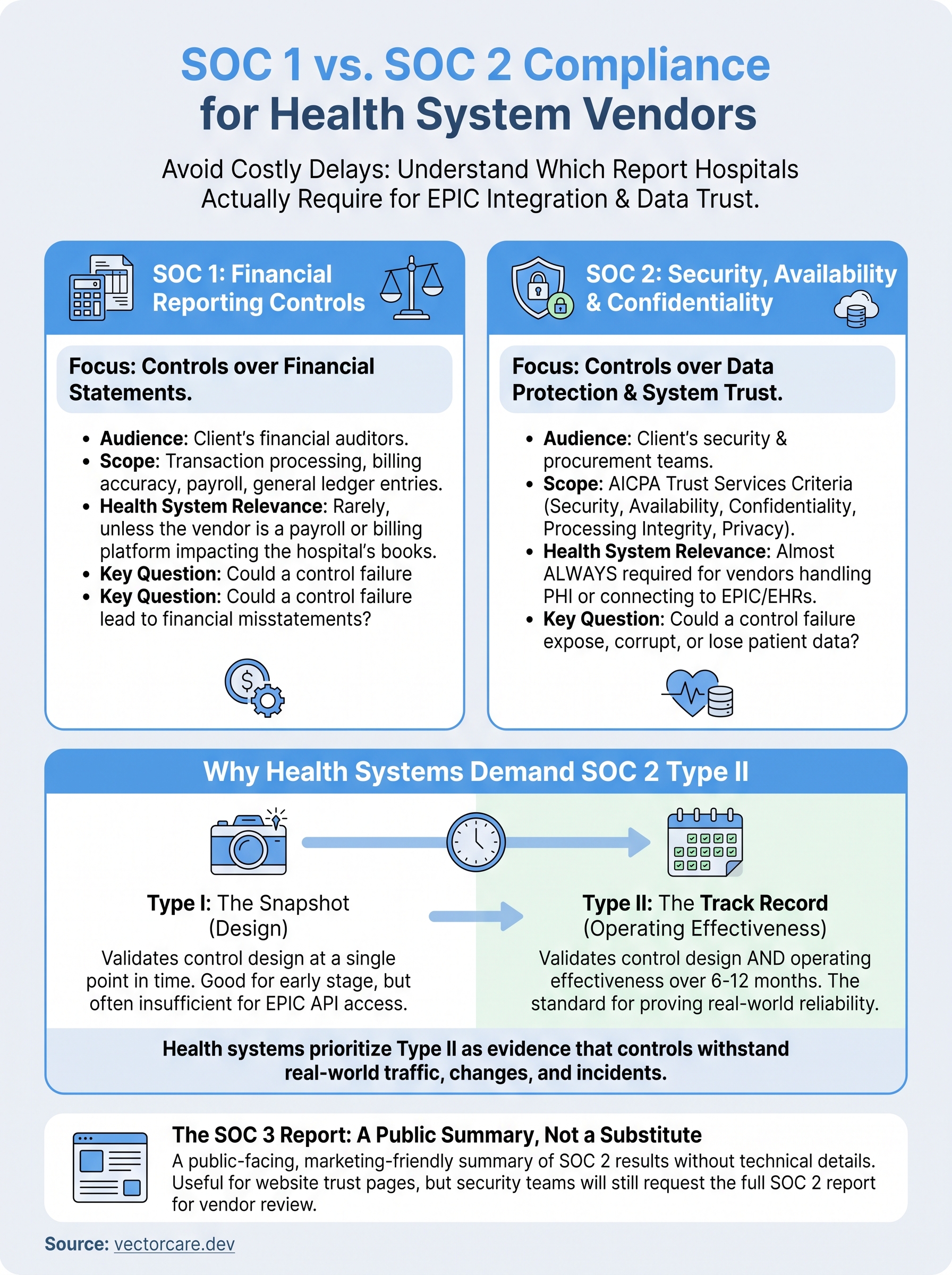
Knowing the difference between SOC 1 and SOC 2 compliance changes how you walk into every vendor review from here on out. SOC 1 reassures financial auditors, SOC 2 reassures the security teams standing between you and an EPIC integration, and Type 2 is almost always the version a hospital expects. Get that straight before your next sales call, and you stop losing weeks to preventable back-and-forth with procurement.
None of this means you have to build your compliance program from scratch while also building your product. Vendors trying to launch inside EPIC don't need to run a six-month gap analysis before they ship a single workflow. If you'd rather skip the audit prep and get an app in front of health systems with compliance already handled, build and deploy your Smart on FHIR app in days with VectorCare instead of spending months on engineering and paperwork.