Dropbox HIPAA Business Associate Agreement: Plans & Steps

If your organization handles protected health information (PHI), every tool in your stack needs a signed Business Associate Agreement, cloud storage included. A Dropbox HIPAA Business Associate Agreement is what stands between your team using Dropbox for legitimate healthcare workflows and exposing your organization to serious regulatory violations. Without one, even routine file sharing can put you out of compliance.
Dropbox does offer a BAA, but not on every plan. The agreement is only available on specific paid tiers, and signing it requires navigating the admin console with the right account permissions. Knowing exactly which subscription qualifies and how to execute the agreement saves you from assumptions that could cost you during an audit.
This article breaks down which Dropbox plans support HIPAA compliance, walks through the steps to activate and sign the BAA, and clarifies what the agreement actually covers. At VectorCare, we build HIPAA-compliant SMART on FHIR applications for healthcare vendors integrating with EPIC EHR systems, so we understand firsthand how critical it is to lock down every layer of your compliance posture, from your EHR integration platform down to your file storage provider.
What a Dropbox HIPAA BAA is and what it covers
A Dropbox HIPAA Business Associate Agreement is a legally binding contract between your organization (the covered entity) and Dropbox (the business associate). When your team uses Dropbox to store, share, or transmit protected health information, HIPAA's Privacy and Security Rules require a signed BAA before any PHI touches the platform. Without this contract, Dropbox has no legal obligation to handle your files according to HIPAA standards, and your organization carries full liability for any resulting breach.
The legal structure of the agreement
The BAA operates as an addendum to Dropbox's standard terms of service. It does not replace those terms; it layers specific HIPAA obligations on top of them. The agreement requires Dropbox to implement appropriate safeguards to protect PHI, report any unauthorized access or breach to your organization, and restrict subcontractors from using PHI outside the purposes defined in the contract.
A signed BAA does not make Dropbox itself a HIPAA-compliant environment by default. It means Dropbox has committed to certain obligations, but your organization still bears responsibility for how you configure and use the platform.
Dropbox also commits to returning or destroying PHI at the end of the agreement and to allow your organization to audit its compliance practices if legally required. These are not optional terms; they are standard requirements under the HIPAA Rules administered by the U.S. Department of Health and Human Services.
What the BAA actually covers
The dropbox hipaa business associate agreement covers the storage and transmission of PHI within the Dropbox platform, but it applies specifically to qualifying paid tiers. The BAA covers data at rest and data in transit using Dropbox's encryption infrastructure, shared folder access controls, and audit logging features.
What the BAA does not cover is equally important to understand. It does not extend to third-party integrations connected to your Dropbox account unless those integrations have their own BAAs in place. If you connect a third-party app to Dropbox and PHI flows into that app, you need a separate agreement with that vendor before any PHI touches it.
Scope limitations you need to know
Your BAA with Dropbox applies only to the qualifying Dropbox Business account and its associated features. Personal Dropbox accounts, even if a team member uses them to access shared work folders, fall outside the agreement's scope entirely. Any PHI accessed or downloaded to a personal account creates a compliance gap that the BAA will not protect you from.
Your organization is also responsible for configuring admin-level controls such as restricting external sharing, enabling two-factor authentication, and managing device approvals. The BAA establishes the contractual framework; your configuration choices determine whether PHI stays protected in practice. Treating the BAA as a checkbox rather than a starting point is one of the most common mistakes healthcare organizations make with cloud storage compliance.
Why a BAA matters for HIPAA and PHI in Dropbox
HIPAA classifies any vendor that stores, processes, or transmits PHI on your behalf as a business associate. That definition applies to Dropbox the moment your team saves a patient intake form or shares a clinical document through the platform. Without a signed dropbox hipaa business associate agreement, you are routing sensitive health information through a third-party service with no contractual guarantee that the vendor will apply the federal privacy and security standards your organization is legally required to enforce.
The risk of storing PHI without a signed BAA
Storing PHI in Dropbox without a BAA in place is not a minor procedural gap. Under HIPAA's Privacy Rule, operating without the required contract is a direct compliance violation that can prompt a formal investigation by the HHS Office for Civil Rights. Civil monetary penalties for BAA-related violations can reach $50,000 per incident, and willful neglect cases have resulted in multi-million dollar settlements against covered entities that treated vendor agreements as optional.
The absence of a BAA does not prevent a breach, but it does guarantee that your organization carries the full legal burden when one occurs.
What qualifies as PHI inside Dropbox
PHI extends further than most teams expect. Under HIPAA, any individually identifiable health information that your organization creates, stores, or transmits electronically falls within the definition. Inside Dropbox, this covers clinical intake forms, referral packets, billing records, care coordination notes, discharge summaries, lab results, and even file names that connect a patient identifier to a diagnosis or treatment.
Your team needs to treat every file or folder containing this type of information as PHI, regardless of how routine the document feels. Shared links, external collaborator permissions, and third-party app integrations connected to your Dropbox account each create additional exposure points that the BAA framework is designed to address. Getting the agreement signed is the necessary first step, but understanding what actually counts as PHI inside your account is what makes that agreement meaningful.
Which Dropbox plans support a HIPAA BAA
Not every Dropbox subscription makes you eligible to sign the dropbox hipaa business associate agreement. Dropbox limits BAA availability to specific paid business tiers, and confirming your plan qualification before storing any PHI is a necessary step. If your account does not meet the threshold, Dropbox will not execute the agreement, regardless of how carefully you configure your settings.
Plans that qualify for the BAA
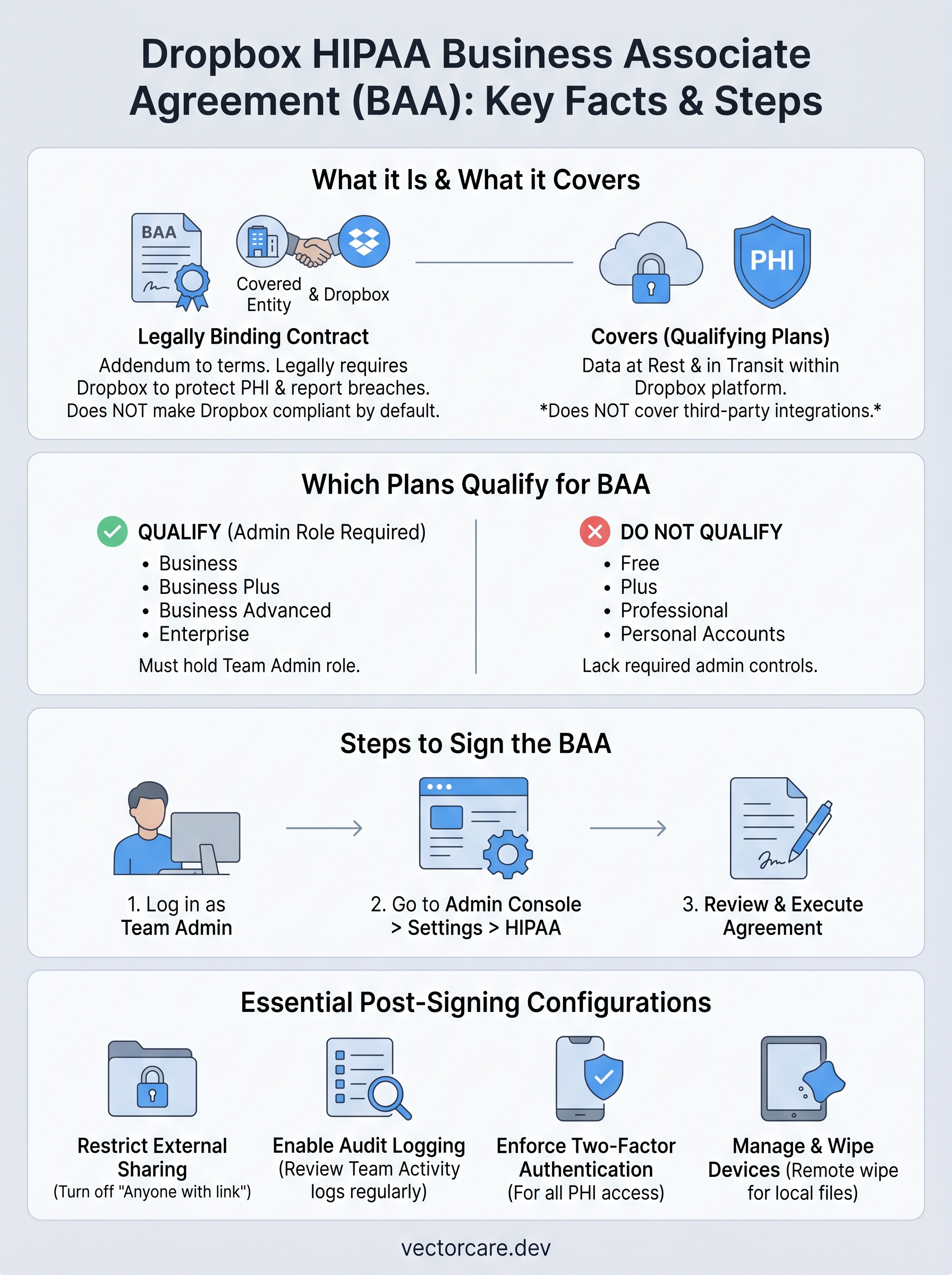
Dropbox makes the BAA available on Business Plus, Business, Business Advanced, and all Enterprise plans. These tiers include the admin controls, audit logging, and account management features that make HIPAA-compliant configurations technically feasible. Your organization needs one of these plans in place before you can locate and activate the BAA inside the admin console.
Dropbox does not proactively notify you that a BAA is available on your plan. You need to locate and execute the agreement yourself through the admin console.
Enterprise plans give you the most flexibility, including extended audit logs, custom data retention options, and dedicated support. Business and Business Plus plans cover most small and mid-size healthcare vendor use cases, provided your team applies the correct admin configurations after signing.
Plans that do not qualify
Free, Plus, and Professional plans do not include access to the HIPAA BAA. These tiers lack the administrative controls required for meaningful PHI governance, and Dropbox will not sign a BAA for accounts on these plans. If your team currently uses a qualifying paid plan but any individual member has a personal Dropbox account linked to shared team folders, that personal account falls entirely outside the BAA's coverage.
You should also confirm that your organization holds the Team Admin role for your qualifying plan. Only team admins can access the HIPAA settings section in the admin console where the BAA is executed. If your account is on a qualifying plan but your role is not at the admin level, you will need to have your IT or compliance lead complete the signing process.
How to sign the Dropbox BAA in the admin console
Signing the dropbox hipaa business associate agreement requires account-level access that only a Team Admin can complete. Before you begin, confirm that your account sits on a qualifying paid plan (Business, Business Plus, Business Advanced, or Enterprise) and that your user role is set to Team Admin. If you do not hold that role, the HIPAA section in the console will not appear, and the signing option will be unavailable to you.

Locating the HIPAA settings page
Log in to your Dropbox account and navigate to the Admin Console, which appears in the left-side navigation panel for qualifying business accounts. From the console, select Settings, then look for the section labeled "HIPAA." Dropbox places this setting within the compliance or security area of the admin console, depending on your plan tier. If you do not see the HIPAA section after checking Settings, your current plan does not qualify for the BAA.
Dropbox does not route you to the BAA automatically after you upgrade your plan. You need to locate the HIPAA settings page manually and initiate the signing process yourself.
Executing the agreement
Once you locate the HIPAA settings page, Dropbox presents the Business Associate Agreement as a document you review and accept directly within the console. Read through the full terms before proceeding. The agreement outlines Dropbox's obligations around PHI handling, breach notification timelines, and subcontractor restrictions that apply from the moment you execute the contract.
After reviewing the document, check the acknowledgment box and select the option to execute the agreement. Dropbox records your acceptance at the account level, and the BAA takes effect immediately upon confirmation. You should download or save a copy of the signed agreement for your own compliance records, since auditors and health system partners often request proof that the BAA is in place before approving vendor relationships.
Keeping the signed agreement on file alongside your other vendor BAAs gives your compliance team a single location to verify your agreement inventory during audits or contract reviews with health systems.
How to configure Dropbox to handle PHI safely
Signing the dropbox hipaa business associate agreement activates your contractual protections, but the agreement does not configure your account for you. Your organization is responsible for adjusting admin-level settings to keep PHI contained within the boundaries the BAA defines. Skipping this step after signing is one of the most common ways healthcare vendors end up with compliance gaps despite having a valid agreement in place.
Restrict sharing and access controls
Your first priority after signing the BAA is locking down external sharing permissions. In the Admin Console, navigate to Content and set sharing permissions to restrict or disable the ability for team members to share files with people outside your organization. For any folders that do hold PHI, limit access to specific named team members rather than setting permissions at the folder level for all users.
- Turn off "Anyone with the link" sharing for all team folders
- Require password protection or expiration dates on any shared links
- Disable the ability for non-admin members to invite external collaborators
- Set folder permissions to view-only where write access is not required
Unrestricted sharing settings can expose PHI to unintended recipients even when your BAA is fully executed, making access control configuration a non-negotiable step.
Enable audit logging and device management
Dropbox Business and higher plans include Team Activity logs that record file access, sharing events, login attempts, and permission changes. Turn on audit logging and schedule regular reviews of the log data so your compliance team can spot unusual access patterns before they become reportable incidents.
Your admin console also includes device management controls that let you approve, monitor, and remotely wipe devices connected to your team's Dropbox account. Require two-factor authentication for every team member who has access to folders containing PHI, and enable remote wipe for any device that stores Dropbox files locally. These settings close the gap between your contractual obligations under the BAA and the day-to-day realities of how your team uses the platform.
Where to go from here
You now have a clear picture of what the dropbox hipaa business associate agreement covers, which plans qualify, how to execute it in the admin console, and how to configure your account so the agreement means something in practice. The BAA is your contractual foundation, but access controls, audit logging, and device management are what keep PHI protected day to day.
Signing the Dropbox BAA handles one layer of your compliance stack. If your organization also needs to integrate with EPIC EHR systems, that layer requires its own set of HIPAA, SOC2, and SMART on FHIR compliance requirements that go well beyond a storage agreement. Most healthcare vendors spend 12 to 18 months and hundreds of thousands of dollars navigating that process on their own. VectorCare cuts that timeline to weeks. If you are building toward an EPIC integration, see how VectorCare handles the full compliance and deployment process.
The Future of Patient Logistics
Exploring the future of all things related to patient logistics, technology and how AI is going to re-shape the way we deliver care.
Thank you! Your submission has been received!
Oops! Something went wrong while submitting the form.