AWS IAM Roles and Policies: What They Are and How They Differ

If you're building a healthcare integration on AWS, you've probably hit a wall trying to figure out aws iam roles and policies and why they never seem to work the way the documentation implies. That confusion gets expensive fast when you're wiring up FHIR endpoints, S3 buckets full of PHI, or Lambda functions that talk to EPIC. Getting the permission model wrong either locks your app out of the data it needs or opens a door you really didn't mean to leave open.
The short answer: a policy is a document that defines what actions are allowed or denied on which resources, while a role is an identity that AWS services or users can assume, with one or more policies attached to it. Policies define the rules, roles define who can use them. Mixing that up is the single most common source of broken deployments and accidental over-permissioning.
This guide walks through how each piece works, how they interact, and how to set up least-privilege access for real workloads. We build SMART on FHIR apps that connect to EPIC every day, so we'll ground the examples in the kind of healthcare data access patterns you'll actually run into.
Why IAM roles and policies matter for AWS security
Misconfigured permissions are the leading cause of cloud data breaches, and healthcare data makes an especially attractive target. When you're moving patient records between your app and EPIC, a single overly broad policy can expose protected health information to anyone who compromises a Lambda function or an EC2 instance. Understanding aws iam roles and policies isn't optional homework, it's the control layer that decides whether a bug in your code becomes an inconvenience or a reportable breach under HIPAA.
AWS secures the cloud, you secure what's in it
Amazon draws a hard line between what it protects and what you're responsible for. AWS's shared responsibility model covers physical security, hardware, and the underlying network, but everything above that, including identity configuration and access control, is on you. That means IAM isn't a background service you set up once and forget. It's the primary mechanism you control to keep PHI locked down, and it's usually the first thing an auditor asks about when you're pursuing a BAA with a health system.
Get IAM wrong, and every other security control you've built is decoration.
Least privilege isn't a slogan, it's a design constraint
Granting broad permissions feels faster during development, but it quietly builds risk into your architecture that surfaces later, usually during an incident review. The principle of least privilege means every role and policy grants exactly the access needed to do its job, nothing more. In a healthcare integration, this shows up in very concrete ways:
- A Lambda function that reads FHIR Patient resources shouldn't also have write access to your billing tables.
- An EC2 instance handling intake forms shouldn't be able to delete CloudTrail logs.
- A third-party analytics service shouldn't get a role that can assume other roles in your account.
Each of these scenarios is a real pattern we see in EPIC-connected apps, and each one is preventable with a properly scoped policy attached to a properly scoped role.
Why roles beat hardcoded credentials
Hardcoding AWS access keys into application code or config files is still shockingly common, and it's a liability in any environment, let alone one touching patient data. Keys get committed to repos, leaked in logs, or forgotten in old EC2 instances long after someone's left the team. Roles solve this by issuing temporary credentials that rotate automatically and never touch your codebase. If a role's credentials leak, they expire on their own, usually within an hour. If a hardcoded key leaks, it's valid until someone notices and manually revokes it, which in practice can take days.
The compliance angle you can't skip
Speaking of BAAs, IAM configuration is one of the first things reviewers scrutinize when they evaluate whether your AWS environment meets HIPAA's technical safeguard requirements. AWS documents its own compliance posture in the AWS HIPAA compliance guide, but that documentation only covers AWS's side of the shared responsibility split. Your side includes proving that access to PHI is logged, restricted, and reviewable, which is exactly what well-structured roles and policies give you through CloudTrail integration and IAM Access Analyzer.
What poor IAM hygiene actually costs you
Beyond the compliance risk, sloppy permission management slows you down operationally. Teams that skip proper role design end up debugging "access denied" errors in production, granting emergency admin access to fix urgent issues, and forgetting to revoke it. That pattern compounds over time into an account full of unused, overly permissive roles that nobody wants to touch for fear of breaking something. Cleaning that up later costs far more engineering time than designing it correctly from the start, which is exactly why the next two sections walk through the setup process step by step.
How to create and attach an IAM role
Creating a role in AWS involves two separate decisions: who or what is allowed to assume it, and what that role can do once assumed. Skip either step and the role either sits unusable or ends up wide open. For a healthcare integration, this usually means creating a role for a Lambda function that pulls FHIR resources, or an EC2 instance running your intake application, so get comfortable with the workflow because you'll repeat it constantly as your app grows.
Define who can assume the role
Before AWS lets anything use a role, you need a trust policy that names the specific service, account, or user permitted to assume it. This is separate from the permissions policy, and it's the piece most people forget when a role mysteriously refuses to work. A Lambda function needs lambda.amazonaws.com listed as the trusted principal, while a role meant for cross-account access needs the other account's ARN instead.

{
 "Version": "2012-10-17",
 "Statement": [
 {
 "Effect": "Allow",
 "Principal": { "Service": "lambda.amazonaws.com" },
 "Action": "sts:AssumeRole"
 }
 ]
}
Create the role through the console or CLI
Once you know the trusted principal, creating the role itself is straightforward. In the IAM console, walk through these steps:
- Open IAM > Roles > Create role.
- Select the trusted entity type (AWS service, another account, or web identity for SMART on FHIR apps).
- Choose the specific service, such as Lambda or EC2.
- Skip permissions for now and give the role a descriptive name like
fhir-patient-read-role. - Review and create.
If you'd rather script it, the AWS CLI does the same thing in one command:
aws iam create-role \
 --role-name fhir-patient-read-role \
 --assume-role-policy-document file://trust-policy.json
Attach permissions after creation
Here's the part people rush past: a brand new role can be assumed, but it can't do anything yet. AWS treats the trust policy and the permissions policy as two independent documents, and until you attach a permissions policy, the role has zero access to any resource.
A role without an attached policy is an empty container. It's who, not what.
Attach an existing managed policy or a custom one you've written with a single CLI call:
aws iam attach-role-policy \
 --role-name fhir-patient-read-role \
 --policy-arn arn:aws:iam::123456789012:policy/FHIRPatientReadOnly
Once attached, your Lambda function or EC2 instance can assume the role and inherit exactly the permissions defined in that policy, no hardcoded keys involved. The next section covers how to actually write that permissions policy so it grants precisely what your integration needs and nothing more.
How to write and attach an IAM policy
An IAM policy is just a JSON document with a specific structure, but getting that structure right for a healthcare workload takes more thought than copying a template from the docs. You're defining exactly which FHIR resources, S3 buckets, or Lambda invocations a role can touch, and every extra permission you leave in is a liability you'll have to explain during a security review. The good news is that once you understand the anatomy of a policy statement, writing precise ones becomes fast.
Understand the anatomy of a policy statement
Every policy statement answers four questions: what effect (allow or deny), what action, on what resource, and under what condition. Skipping the condition block is fine for simple cases, but it's often where real least-privilege control lives, especially when you want to restrict access by IP range, time window, or resource tag.
{
 "Version": "2012-10-17",
 "Statement": [
 {
 "Effect": "Allow",
 "Action": [
 "s3:GetObject"
 ],
 "Resource": "arn:aws:s3:::fhir-patient-records/*",
 "Condition": {
 "StringEquals": { "s3:ExistingObjectTag/PHI": "true" }
 }
 }
 ]
}
That example grants read access to a specific bucket, scoped to objects tagged as PHI, rather than blanket access to every object in your account. That distinction matters enormously when an auditor asks how you enforce data minimization.
Write the policy for your use case
Start narrow and expand only when a real error tells you to. A common mistake is writing "Resource": "*" during development and forgetting to tighten it before shipping. Here's a practical process:
- List the exact API actions your service calls, such as
dynamodb:GetItemorlambda:InvokeFunction. - Identify the specific ARNs those actions touch, not the whole service.
- Add conditions where tags, encryption, or source IP can further restrict access.
- Test with the IAM policy simulator before attaching it to anything live.
Write policies for the access you need today, not the access you might need someday.
Attach the policy to a role
Once the JSON is validated, create the managed policy and attach it to the role you built earlier. This keeps the policy reusable across multiple roles instead of duplicating logic everywhere.
aws iam create-policy \
 --policy-name FHIRPatientReadOnly \
 --policy-document file://fhir-read-policy.json

aws iam attach-role-policy \
 --role-name fhir-patient-read-role \
 --policy-arn arn:aws:iam::123456789012:policy/FHIRPatientReadOnly
Validate before you deploy
Don't trust that a policy does what you think it does just because it saved without errors. AWS's policy simulator lets you test specific actions against specific resources and see the actual allow/deny decision before real traffic hits your integration. Run that check every time you touch a policy tied to PHI access, since a small typo in a resource ARN can silently grant access to the wrong bucket or, worse, deny access your app actually needs in production.
Key differences between IAM roles and policies
By now you've built a role and written a policy, but it's worth pinning down exactly where the line between them sits, because the two get conflated constantly in job descriptions, Stack Overflow answers, and even some AWS documentation. A policy is a static permissions document. A role is an identity that something else assumes, and it becomes powerful only when a policy is attached to it. Neither one works without the other, but they solve completely different problems.

They answer different questions
Confusion usually comes from treating roles and policies as interchangeable, but they answer different questions entirely. A policy answers "what is allowed?" A role answers "who or what gets to act?" You can write the exact same policy and attach it to five different roles, and each role will behave identically in terms of permissions, but each one will be assumable by a different service, user, or account depending on its trust policy.
| Aspect | IAM Role | IAM Policy |
|---|---|---|
| What it is | An identity that can be assumed | A JSON document defining permissions |
| Controls | Who or what can act | What actions are allowed or denied |
| Contains credentials | Yes, temporary and auto-rotating | No |
| Can exist alone | Yes, but grants no access without a policy | Yes, but does nothing without attachment |
| Reusable across identities | No, it's a single identity | Yes, one policy can attach to many roles or users |
| Defined by | Trust policy + attached permissions policy | Effect, Action, Resource, Condition |
A role decides who's in the room. A policy decides what they're allowed to touch once they're there.
Roles carry credentials, policies never do
One distinction that trips people up: a role generates temporary security credentials when assumed, while a policy is inert JSON that never issues anything on its own. This is why you attach roles to compute resources like Lambda or EC2, but you attach policies to identities like roles, users, and groups. You'd never see an application "assume a policy," because a policy has no identity of its own to assume. It's purely a rulebook that gets referenced by whatever identity holds it.
Policies scale independently of roles
Another practical difference shows up at scale. A well-written policy is meant to be reused. You might attach the same FHIRPatientReadOnly policy to a Lambda role, an EC2 role, and a federated user role, and all three inherit identical permissions without you rewriting a single line of JSON. Roles, by contrast, are meant to be specific. Each one represents a distinct identity tied to a distinct workload, and duplicating a role the way you'd duplicate a policy usually signals a design problem rather than good practice. Keeping that asymmetry in mind, one policy, many possible roles, makes it far easier to audit who has access to what across a growing AWS environment.
Common types of IAM policies and when to use them
Not every policy in AWS serves the same purpose, and picking the wrong type for the job creates the kind of tangled permission structure that's impossible to audit later. When you're working through aws iam roles and policies for a healthcare integration, you'll typically run into four categories: AWS managed, customer managed, inline, and resource-based. Each one has a specific use case, and mixing them up without a reason usually means someone reached for whatever was fastest instead of what was correct.
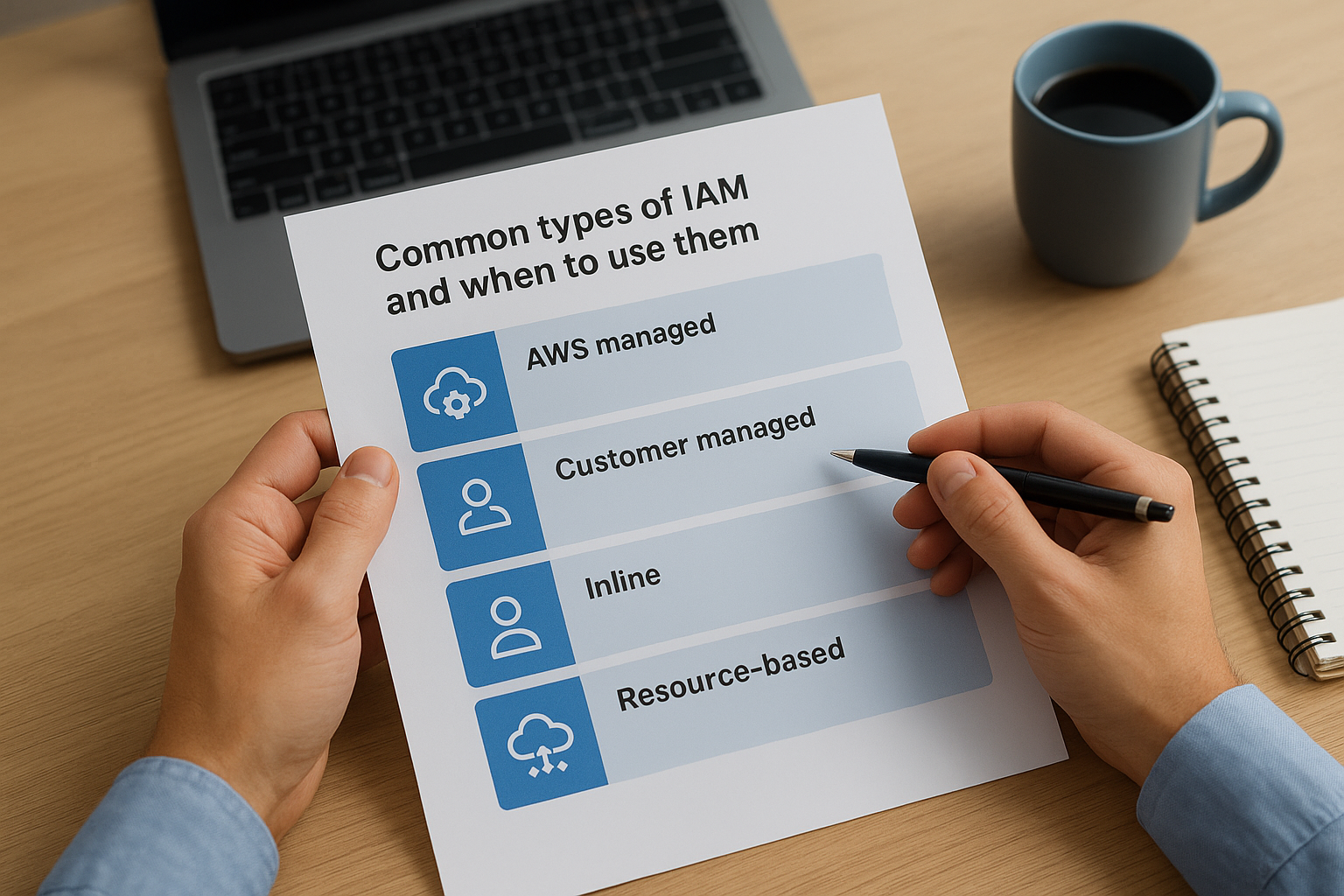
AWS managed policies get you started, not finished
AWS ships a library of prebuilt policies like AmazonS3ReadOnlyAccess or AWSLambdaBasicExecutionRole, and they're genuinely useful for prototyping. The problem is they're built for the general case, not your specific FHIR endpoint or PHI bucket, so they almost always grant more than you need. Use them to get moving in a dev environment, then replace them before anything touches real patient data.
Customer managed policies are where precision lives
This is the type you'll write yourself, like the FHIRPatientReadOnly example from earlier, and it should be your default for anything production-facing. Customer managed policies are reusable, versioned, and easy to attach across multiple roles, which makes them the right choice when several services need identical, tightly scoped access.
If a policy touches PHI, it should be customer managed, not borrowed from AWS's defaults.
Inline policies stay glued to one identity
An inline policy is embedded directly into a single role, user, or group rather than existing as a standalone object. That makes it a poor fit for anything you plan to reuse, but a good fit for a one-off permission that genuinely belongs to a single role and nowhere else, like a narrow exception during a migration.
Resource-based policies flip the direction of control
While the policies above attach to an identity, resource-based policies attach directly to a resource, like an S3 bucket policy or a Lambda resource policy, and define which principals can access that resource. This matters for cross-account scenarios, such as when an external analytics vendor needs limited read access to a specific bucket without you creating a role for them in your own account.
| Policy Type | Attached To | Best For |
|---|---|---|
| AWS managed | Roles, users, groups | Fast prototyping, non-production |
| Customer managed | Roles, users, groups | Reusable, precise production access |
| Inline | A single identity | One-off, non-reusable exceptions |
| Resource-based | The resource itself | Cross-account or external access |
Matching the policy type to the actual scenario, rather than defaulting to whatever's easiest in the console, keeps your permission model readable months later when someone else has to review it.
Real-world examples of IAM roles and policies
Abstract examples only get you so far, so here's how these pieces show up in an actual EPIC-connected application, the kind VectorCare deploys for digital health vendors every week. Each scenario below pairs a role with a policy the way you'd actually configure it in a production account, not a tutorial.
A SMART on FHIR launch role for EPIC
Consider a remote patient monitoring vendor whose app launches inside EPIC through SMART on FHIR to pull vitals for a specific patient. The role trusts a web identity federated through the OAuth exchange, and the attached policy restricts access to Observation and Patient read actions scoped to the session's patient context. Nothing in that role can write data back to EPIC or touch any resource outside the current encounter, which is exactly the kind of narrow, session-scoped access a health system's security team wants to see before approving your EPIC Showroom listing.

A Lambda role that processes referral data
Behind the FHIR endpoint, a Lambda function typically transforms incoming referral data and writes it to DynamoDB for the vendor's internal workflow. Its role is trusted only by lambda.amazonaws.com, and the policy grants dynamodb:PutItem on one specific table ARN, plus logs:CreateLogStream for CloudWatch. It has no S3 access, no permission to invoke other functions, and no reach into any other vendor's table in the same account.
{
 "Effect": "Allow",
 "Action": ["dynamodb:PutItem", "logs:CreateLogStream"],
 "Resource": [
 "arn:aws:dynamodb:us-east-1:123456789012:table/ReferralQueue",
 "arn:aws:logs:us-east-1:123456789012:log-group:/aws/lambda/referral-writer:*"
 ]
}
A tightly scoped Lambda role is the difference between a contained bug and a full data exposure.
A resource-based policy for an external DME vendor
Durable medical equipment and transportation partners often need read access to referral documents stored in S3, but without a role inside your own account. A resource-based bucket policy solves this cleanly: it names the vendor's AWS account as a trusted principal and grants s3:GetObject on a single prefix, like /dme-referrals/. The vendor never gets an IAM user or role in your environment, and revoking access later means editing one bucket policy statement instead of hunting down a role somewhere in your account.
How these examples reinforce each other
What ties these three scenarios together is repetition of the same discipline: a narrow trust policy, a narrow permissions policy, and a resource ARN that's as specific as the API allows. None of these roles could function outside the exact task assigned to them, which is precisely the outcome aws iam roles and policies, applied correctly, are supposed to produce across a healthcare integration.
Best practices for managing IAM permissions at scale
One role and one policy is easy to reason about. Fifty roles across three EPIC-connected apps, each with its own Lambda functions, S3 buckets, and DynamoDB tables, is a different problem entirely. Without a deliberate strategy, permission sprawl creeps in fast, and six months later nobody on the team can explain why a random role has admin access to a bucket nobody remembers creating. The practices below are what keep a growing AWS environment auditable instead of chaotic.
Group permissions with IAM groups and tags
Rather than attaching policies to individual users one at a time, put users into groups that mirror actual job functions, like fhir-developers or phi-auditors, and attach policies to the group instead. Tags help just as much on the resource side. Tagging every FHIR-related S3 bucket and DynamoDB table with something like data-class: PHI lets you write conditions that scope access by tag rather than by hardcoded ARN, which scales far better as new resources get created.
Automate reviews instead of relying on memory
Manual permission reviews work fine at five roles and fall apart at fifty. Build the review into your pipeline instead:
- Run IAM Access Analyzer on a schedule to flag unused permissions and external access you didn't intend to grant.
- Set a quarterly cadence to remove roles nobody has assumed in 90 days.
- Require a policy diff review in pull requests, the same way you'd review application code, before any IAM change merges.
Permissions you never audit are permissions you've already lost track of.
Separate environments completely
Development, staging, and production should never share roles or policies, full stop. A common failure mode is reusing a broad development role in production because it's convenient, which means a bug in a staging deployment can suddenly touch real patient data. Separate AWS accounts per environment, tied together with AWS Organizations, enforce that boundary structurally instead of relying on someone remembering to swap a role name.
Rotate and expire deliberately
Temporary credentials already expire automatically when a role is assumed, but that's not the same as reviewing whether the role itself should still exist. Set expiration reminders for any inline exceptions you created for a migration or an emergency fix, and actually revisit them. An emergency admin role granted during an incident and forgotten is one of the most common findings in a security audit.
| Practice | Why It Matters | How Often |
|---|---|---|
| Access Analyzer scan | Flags unused or external access | Weekly |
| Unused role cleanup | Shrinks attack surface | Quarterly |
| Policy diff review | Catches over-broad changes before merge | Every change |
| Environment separation audit | Prevents dev/prod bleed | At account creation |
Getting this discipline right once, early, saves you from the much harder job of untangling a permission structure that grew organically without anyone owning it.

Bringing IAM roles and policies together
Getting aws iam roles and policies right comes down to one habit: keep asking who's assuming this role and what this policy actually permits, every single time you touch your AWS account. Roles define identity, policies define permission, and healthcare integrations demand both be scoped as tightly as the workflow allows. Skip that discipline and you're not just risking a broken deployment, you're risking PHI exposure and a failed audit right when you're trying to close a health system contract.
Building this correctly for one Lambda function is manageable. Building it correctly across every FHIR endpoint, S3 bucket, and EPIC-connected app your team ships is a full-time job most digital health vendors don't have the headcount for. That's exactly the problem VectorCare's no-code platform solves, handling the compliant IAM architecture, SMART on FHIR configuration, and EPIC Showroom submission so your team can focus on the product. Build and deploy your Smart on FHIR app in days instead of untangling permissions for months.
The Future of Patient Logistics
Exploring the future of all things related to patient logistics, technology and how AI is going to re-shape the way we deliver care.
Thank you! Your submission has been received!
Oops! Something went wrong while submitting the form.