Azure Monitor Audit Logs: How To Access, Query, And Use

Every SMART on FHIR application handling protected health information needs a reliable audit trail. Azure Monitor audit logs provide that trail by recording who did what, when, and to which resource across your Azure environment. For healthcare vendors building EHR integrations, especially those deploying into EPIC, understanding these logs isn't optional. It's a core requirement for HIPAA and SOC2 compliance.
At VectorCare, we manage the full hosting and compliance stack for healthcare vendors launching SMART on FHIR apps into the EPIC Showroom. Azure Monitor audit logs are part of how we maintain visibility into application behavior and ensure every deployed instance meets the security standards health systems expect. That hands-on experience with audit logging in production healthcare environments is exactly what shaped this guide.
This article breaks down what Azure Monitor audit logs are, how they differ from activity logs, and how to access and query them effectively. Whether you're setting up logging for a new deployment or trying to make sense of existing log data, you'll walk away with a clear, practical understanding of how to put these logs to work.
Why Azure Monitor audit logs matter
When a health system asks you to prove your application is secure, audit logs are the evidence. Azure Monitor audit logs give you a timestamped, immutable record of every access event, configuration change, and administrative action across your Azure resources. Without that record, you're left making claims you can't back up with data, which becomes a real problem during any compliance review or security incident.
Audit logs aren't just for incident response. They're the foundation of demonstrating ongoing compliance to health systems, auditors, and regulators.
Compliance requirements in healthcare
Healthcare vendors handling protected health information (PHI) face strict obligations under HIPAA's Security Rule. The rule requires you to maintain activity records that show who accessed what data and when, which is exactly what a well-configured audit log provides. SOC2 Type II audits rely on similar evidence: auditors want to see that your controls are operating continuously, not just that they exist on paper. Without complete log coverage, you'll struggle to satisfy either framework during an audit cycle.
Microsoft's guidance on diagnostic settings in Azure Monitor walks through how to enable log collection at the resource level, which is the first step toward meeting these requirements.
Operational visibility and incident response
Beyond compliance, azure monitor audit logs give your team the visibility to detect anomalies before they become incidents. If a service principal suddenly starts accessing resources it didn't touch before, the audit log surfaces that behavior immediately. Your security and engineering teams can then correlate that data with other signals to determine whether something needs remediation.
That speed matters specifically in healthcare environments where a breach notification clock starts ticking the moment you discover an incident. Response time directly affects your regulatory exposure, and having pre-built queries against your audit log data means your team spends less time hunting for answers and more time taking action.
Audit logs vs activity logs and other log types
Azure Monitor collects several distinct log types, and mixing them up leads to gaps in your compliance documentation. Each type captures a different layer of your environment, and knowing which one to rely on for a specific question saves you from chasing data in the wrong place.
Pulling the wrong log type during an audit review is a common mistake that wastes time and creates confusion with auditors.
Activity logs
Activity logs record control plane operations across your Azure subscription, things like creating a virtual machine, changing a role assignment, or deleting a resource group. They tell you what happened at the subscription level, but they don't track what happens inside a resource. Microsoft stores activity logs for 90 days by default, after which you need to export them to a Log Analytics workspace or a storage account for longer retention.
Resource logs and azure monitor audit logs
Resource logs sit one layer deeper. They capture data plane operations, meaning the actions that occur within a specific resource, such as queries run against a database or authentication events inside an API. Azure Monitor audit logs fall into this category when configured for services like Azure Active Directory or Azure Key Vault. The key difference is scope: activity logs answer what changed in your subscription, while resource-level audit logs answer what happened inside a specific service.
How to collect audit logs in Azure Monitor
Collecting azure monitor audit logs starts with a configuration step most teams skip past too quickly: enabling diagnostic settings on every resource you care about. Azure does not turn on audit log collection by default, so resources run silently until you explicitly tell them where to send their logs.
Enable diagnostic settings
You configure diagnostic settings at the individual resource level through the Azure portal, Azure CLI, or an ARM template. Navigate to your resource, open the Diagnostics settings blade, and select which log categories to collect. For services like Azure Key Vault or Azure Active Directory, look specifically for the audit and sign-in log categories, since those capture the access events your compliance documentation needs.
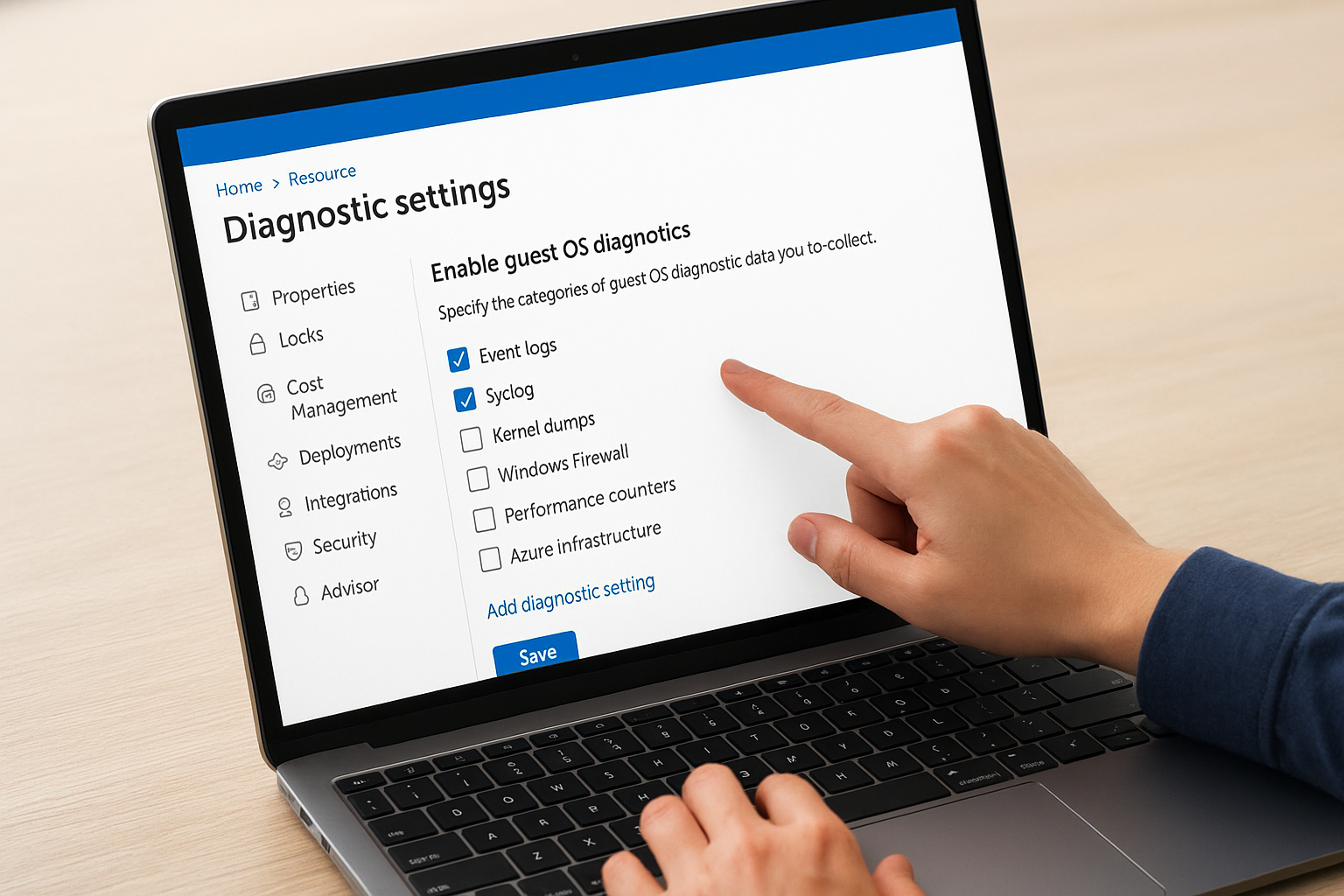
Enabling diagnostic settings after an incident has already occurred means you've lost that historical data permanently.
Choose a log destination
Log Analytics workspaces are the most practical destination for audit logs because they give you direct query access through KQL. Storage accounts work well for long-term archival when you need to hold logs beyond the 90-day default retention window. Event Hubs is a third option if you're streaming log data into a SIEM like Microsoft Sentinel.
Microsoft's documentation on diagnostic settings covers the exact fields and category names for each supported service, which saves you from guessing during setup.
How to query audit logs with KQL
Once your azure monitor audit logs are flowing into a Log Analytics workspace, Kusto Query Language (KQL) is how you extract meaning from them. KQL uses a pipe-based syntax where each step filters, transforms, or summarizes the data from the step before it. You write queries directly in the Log Analytics query editor inside the Azure portal.
Basic KQL structure for audit queries
Every useful audit query starts with the target table name, followed by filters that narrow the result set. For Azure Active Directory sign-in events, you query the SigninLogs table. For Key Vault access events, you query AzureDiagnostics and filter by the ResourceType field. The where operator narrows results by time range or specific fields, and project lets you select only the columns you need to keep output readable.
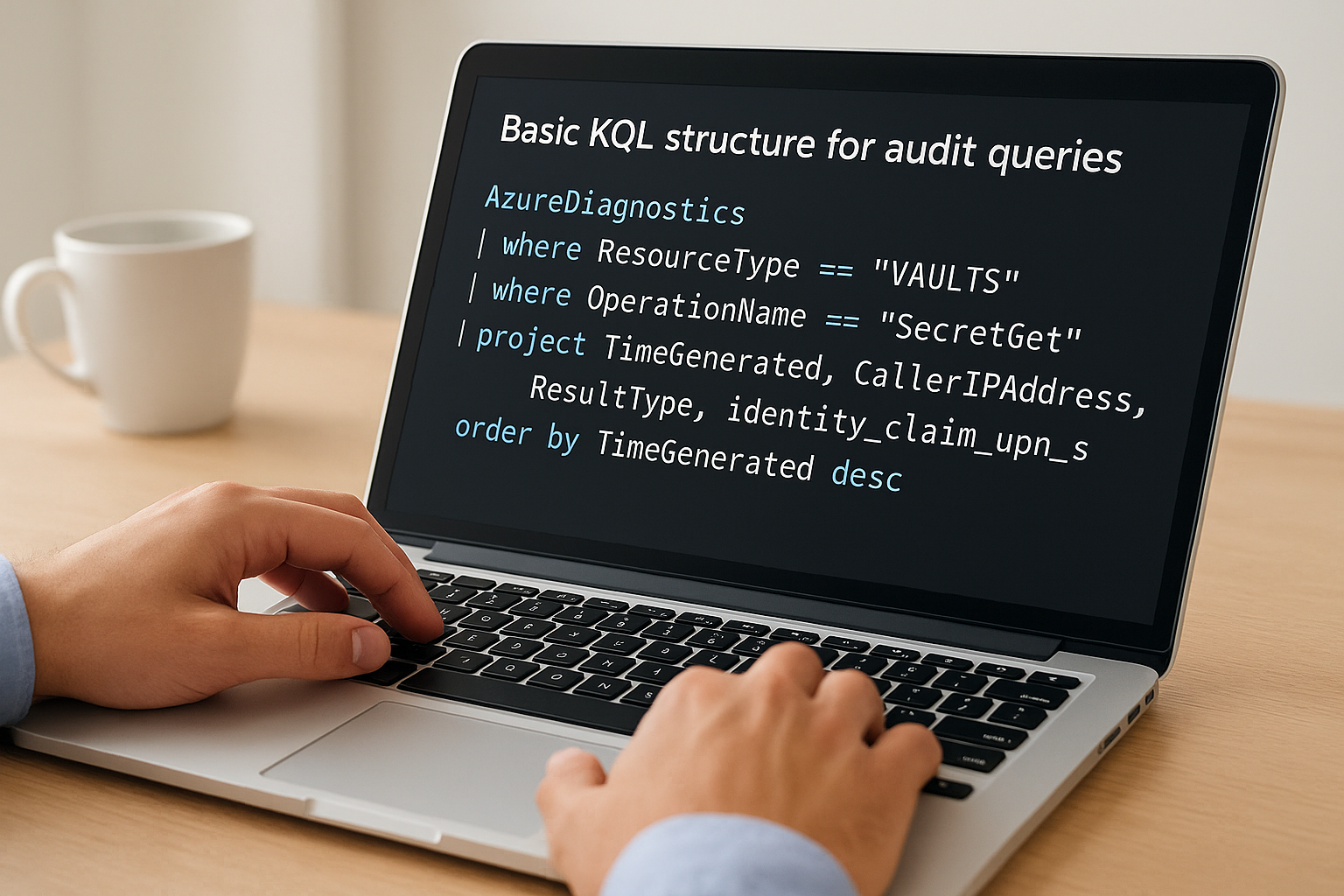
AzureDiagnostics
| where ResourceType == "VAULTS"
| where OperationName == "SecretGet"
| project TimeGenerated, CallerIPAddress, ResultType, identity_claim_upn_s
| order by TimeGenerated desc
Filtering and refining results
Specificity matters when you're reviewing audit data for a compliance report or an incident. Use summarize count() by to aggregate access events by user or IP address, which surfaces patterns that a raw log view hides. The TimeGenerated field is your primary time filter, and pairing it with ago() makes it easy to scope queries to the last 24 hours, 7 days, or any window an auditor requests.
Saving your most-used queries in the Log Analytics query library prevents you from rebuilding them under pressure during an audit.
How to use audit logs for security and compliance
Azure monitor audit logs serve two practical functions: catching security issues early and building the documented evidence trail that auditors and health systems require. Understanding how to apply the data you collect is just as important as collecting it correctly.
Detecting unauthorized access
Your audit logs capture every authentication event, permission change, and resource access across your environment. When you set up alerts in Azure Monitor for specific patterns, such as repeated failed logins or access from unexpected IP ranges, you shift from reactive incident response to proactive threat detection. Configure alert rules directly in the Azure portal under Monitor > Alerts, and route them to your security team through action groups.
Catching an anomalous access pattern before data leaves your environment is the difference between a near-miss and a reportable breach.
Building compliance evidence
Auditors reviewing your HIPAA or SOC2 compliance posture want documented proof that your controls ran continuously, not just assurances that they exist. Export your audit log queries as saved searches in your Log Analytics workspace and schedule regular log exports to a storage account with retention set to match your compliance requirements, typically 90 days minimum for HIPAA and one year for SOC2 Type II. Microsoft's guidance on data retention in Log Analytics walks through exactly how to configure those retention policies at the workspace level.

What to do next
Setting up azure monitor audit logs correctly is one of the most concrete steps you can take toward meeting the compliance requirements health systems demand. Start by enabling diagnostic settings on every resource that touches PHI, route those logs to a Log Analytics workspace, and write a small library of KQL queries for your most common audit scenarios. That foundation gives you both the real-time visibility and the documented evidence trail that auditors expect.
From there, schedule regular log exports and set retention policies that match your HIPAA or SOC2 obligations before your next audit cycle. Review your alert rules quarterly so they keep pace with changes in your environment.
If you're a healthcare vendor building or deploying SMART on FHIR apps into EPIC, the logging and compliance infrastructure described here is part of what we manage for you out of the box. See how VectorCare handles the full deployment stack so your team can stay focused on your core product.
The Future of Patient Logistics
Exploring the future of all things related to patient logistics, technology and how AI is going to re-shape the way we deliver care.
Thank you! Your submission has been received!
Oops! Something went wrong while submitting the form.